Generating a macOS System Report

To help our support team resolve performance, display, or connection issues with Duet Display, we may ask you to provide a macOS System Report. This report provides a detailed snapshot of your hardware, graphics drivers, and software environment without collecting any personal files or private data.
How to Generate a Full System Report
While macOS typically saves reports in a special .spx format, we prefer a plain text (.txt) version. It is smaller, easier to search, and allows our team to diagnose your issue much faster.
The most reliable way to generate a full report is via the Terminal:
- Press Command (⌘) + Space on your keyboard, type Terminal, and press Enter.
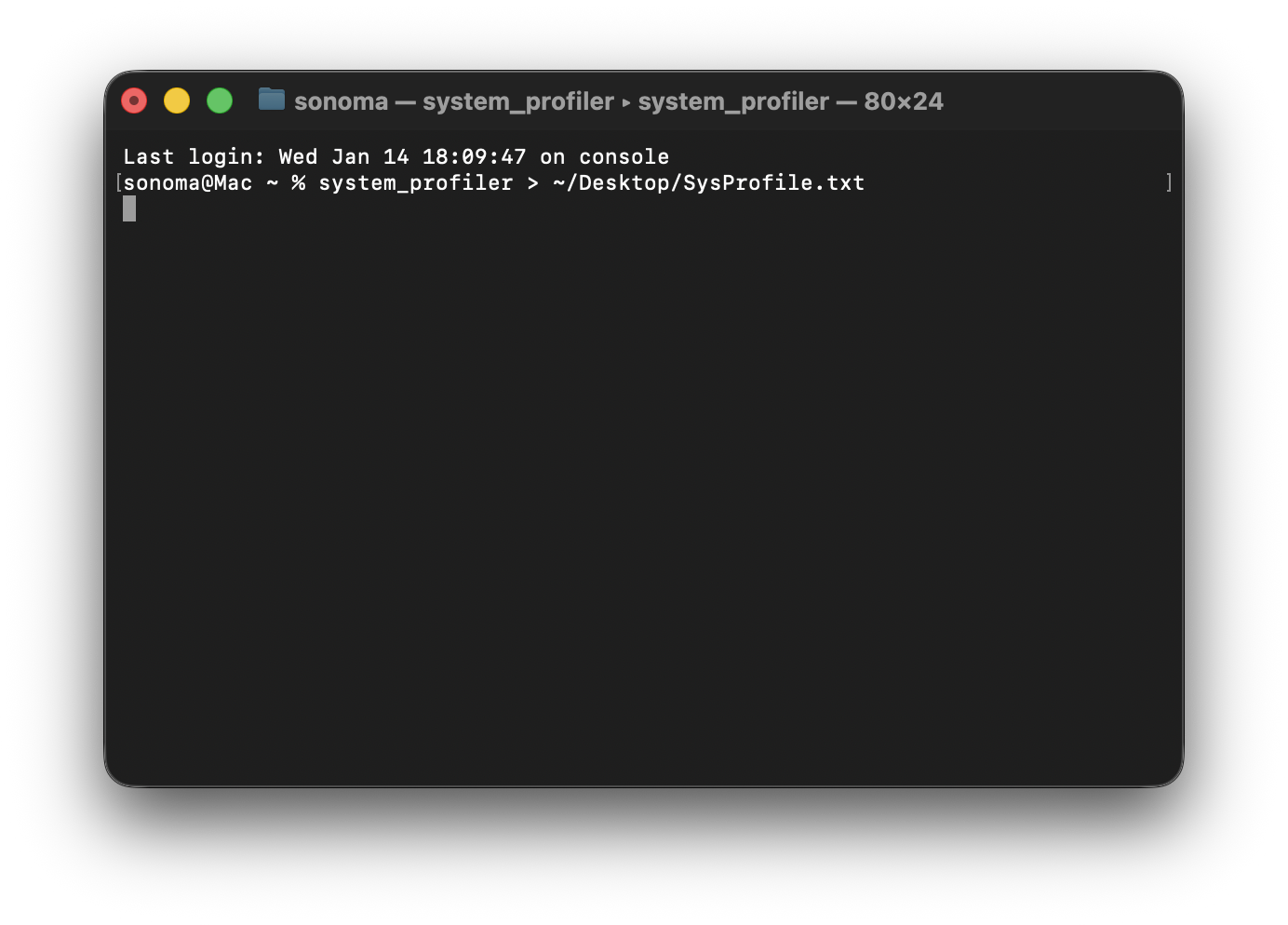
- Copy and paste the following command exactly as shown:
system_profiler > ~/Desktop/SysProfile.txt - Because this gathers a full diagnostic of your system, it may take 30 to 60 seconds to finish. Do not close the window until you see a new, blank command line appear. While the command is running, Terminal may also show error messages, this is normal.
- Go to your Desktop and look for a file named SysProfile.txt.
- Attach this .txt file to your support ticket or email reply.
Why we need this for Duet Display
Duet Display interacts directly with your Mac's graphics engine. The system report helps us identify:
- GPU & Driver Versions: We can see if your Mac is using Intel, AMD, or Apple Silicon (M1/M2/M3) and if the firmware is up to date.
- Operating System: Confirms your macOS version to ensure compatibility with the Duet app.
- Software Conflicts: Identifies other virtual display drivers or mirroring software that might be interfering with Duet’s performance.
Privacy & Security
The System Report is a technical document containing hardware specifications and system logs. It does not contain your passwords, browsing history, photos, or personal files.
Tip: If the Terminal command feels too technical, you can also go to Apple Menu > About This Mac > System Report, then go to File > Export and select Plain Text as the format.
Share


