For Windows laptops
Show your iPhone screen on a work laptop or desktop PC without buying a capture card or dedicated display hardware. Duet also supports Mac and MacBook.
Use Duet to show and control your iPhone screen on a Windows laptop or desktop. Duet also supports Mac, so mixed Mac and PC teams can use one software-based setup for demos, presentations, recordings, and everyday work.
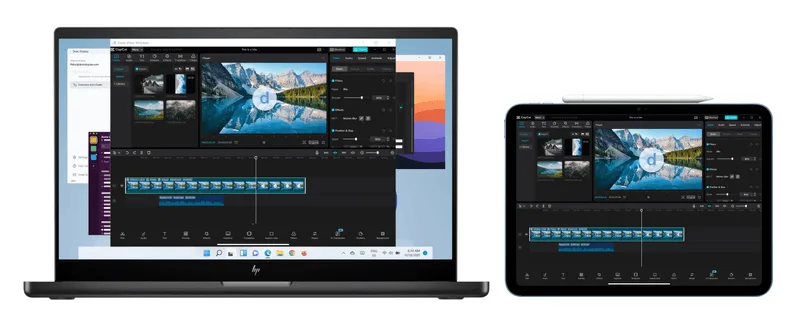
Apple's built-in iPhone Mirroring is designed for Mac. Duet still supports Mac, but this guide focuses on Windows users who need a direct way to bring an iPhone or iPad screen onto the computer they already use.
Show your iPhone screen on a work laptop or desktop PC without buying a capture card or dedicated display hardware. Duet also supports Mac and MacBook.
Present an app, walk through a mobile flow, or record an iOS screen from the larger computer setup you already use.
When watching is not enough, Duet lets you mirror and control your iPhone or iPad from your computer.
Download Duet on your Windows PC so the computer is ready to show your iPhone screen.
Get Duet from the App Store and sign in to the same Duet account on both devices.
Follow the in-app pairing steps, then mirror and control your iPhone from the Windows screen.
This guide is for people searching for iPhone mirroring on Windows, screen mirror iPhone to PC, display iPhone on PC, and iPhone screen on Windows.
Yes. Duet lets you mirror and control your iPhone or iPad on a Windows PC for demos, presentations, recordings, and work.
No. Duet is software-based, so you do not need a capture-card setup or extra capture hardware.
Yes. Duet is built for mirroring and control when you need to do more than watch the iOS screen.
Start a Duet trial, then download Duet for Windows and iOS.


