Product demos
Show a mobile app on a larger screen while controlling the device from the computer in front of you.
Mirror and control your iPhone or iPad from a Windows computer when you need to demo an app, record a mobile workflow, or present an iOS screen clearly. Duet also supports Mac for teams that use both platforms.
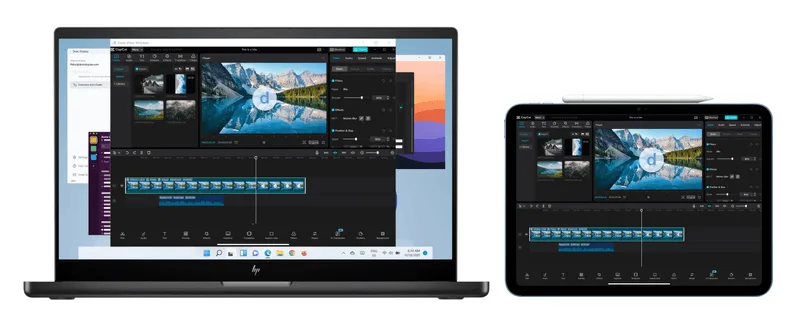
Duet is useful when a mirrored iPhone screen needs to become part of a desktop workflow.
Show a mobile app on a larger screen while controlling the device from the computer in front of you.
Put the iPhone screen on your PC so it is easier to include in screen recordings and walkthroughs.
Use the computer display for training, sales calls, classes, and live demos where the phone screen needs to be clear.
Install Duet on your Windows PC and on the iPhone or iPad you want to use.
Use the same Duet account so the computer and iOS device are part of the same setup.
Start the iOS mirroring workflow and use your computer to interact with the device.
This workflow is for an iPhone or iPad you have with you. It is not positioned as unattended remote support for someone else's device. Mac support remains available; this page is focused on Windows search intent.
Yes. Duet lets you mirror and control your iPhone or iPad from a Windows computer.
No. This workflow is for a device you have with you, such as a phone used for demos, recordings, and presentations.
Yes. Duet supports iPhone and iPad mirroring and control workflows on Mac and PC.
Start a Duet trial and set up iOS mirroring on Windows.


